Resources · iRacing
How to make an iRacing livery with AI
Making a custom iRacing paint used to mean wrestling with a UV template in Photoshop. With an AI iRacing livery generator you describe what you want, the AI paints it onto the actual car template, and you export a race-ready TGA. Here's the whole workflow.
The hard part isn't the idea — it's the template
Most sim racers know the look they want. What stops them is the iRacing paint template: a flat UV layout where the hood, doors, and quarter panels are scattered across the image in pieces that only line up once they're wrapped onto the 3D car. Paint in the wrong region and your number ends up on the roof. An AI livery generator handles that mapping for you — you work in plain language and previews, not channels and layers. And you don't have to get it right in one shot: it's a back-and-forth, and Ailivery shapes the design with you.
Make the livery in six steps
- 1
Get the car's paint template
Grab the paint template for your iRacing car and upload it to Ailivery. The PSD, a PNG, or the paint-template ZIP all work — it's flattened in your browser and the design happens on top of it.
- 2
Talk it through
Tell Ailivery what you're after — a few colors, a rough vibe, even just "something clean and fast." It's a conversation, not a one-shot prompt: it asks about the gaps, suggests directions, and shapes the design with you. Want a head start? The livery prompt ideas are there to riff on, never required.
- 3
Generate the paint
The AI produces an original paint that fits the car's UV template, so the design lands in the right places instead of being a flat picture stretched over the body.
- 4
Refine the design
Change colors, move elements, and mark up edits. Refinements re-apply on the clean template so the look stays sharp instead of degrading with each pass.
- 5
Export the TGA
Export the iRacing files:
car_<id>.tga, plus an optionalcar_spec_<id>.tgaspec map for the right shine and metallics. - 6
Install it in iRacing
The Ailivery Windows helper drops the TGA straight into your iRacing paint folder for a one-click install, or you can place it manually in
Documents\iRacing\paint. The iRacing install guide covers both.
Get a better result
Start rough, refine in chat
You don't need the perfect description up front. Begin with whatever you've got — Ailivery asks the right questions and you steer from there. The more you react to each preview, the closer it gets.
Use logos you own
Add your team or sponsor marks only if you have the rights. Keep the design original and brand-safe.
Refine, don't restart
Small follow-up edits keep the parts you like. Reach for the spec map when you want metallic or gloss to read right.
iRacing livery questions
What if I don't know exactly what I want?
That's fine — most people don't. Ailivery is a chat: start with a rough idea or even just a feeling, and it suggests directions, asks about the details that matter, and refines with you until it looks right. No design skills or perfect wording needed.
Do I need Photoshop to make an iRacing livery?
No. Ailivery designs on the car template for you, so you work in plain language and previews. You only need the paint template file for your car.
What file does iRacing need?
A TGA named car_<id>.tga, with an optional car_spec_<id>.tga spec map for shine and metallics. Ailivery exports both.
Can I bring a design I made in another AI tool?
Yes — see turning a ChatGPT or Midjourney concept into an iRacing livery. Ailivery maps the idea onto the real template so it's race-ready.
Where does the file go?
Into your iRacing paint folder. The Windows helper installs it automatically, or you can drop it in Documents\iRacing\paint yourself.
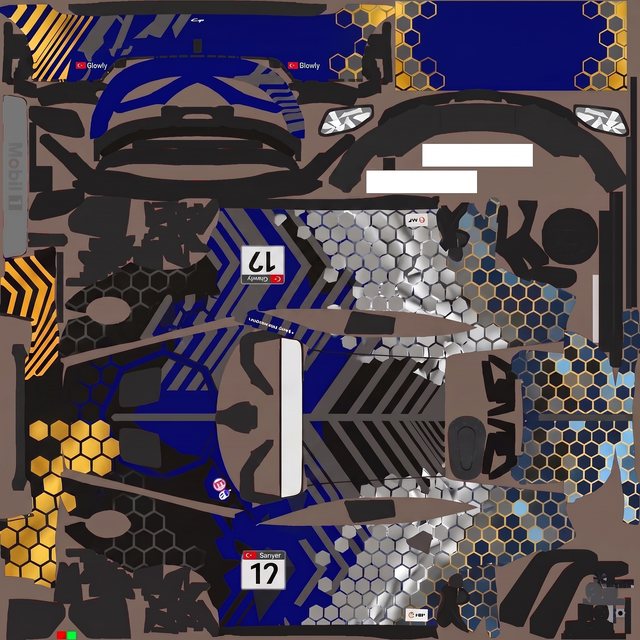
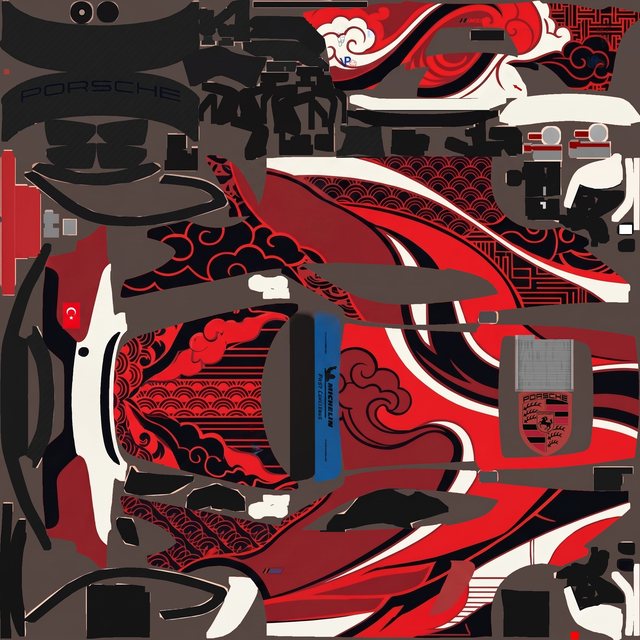
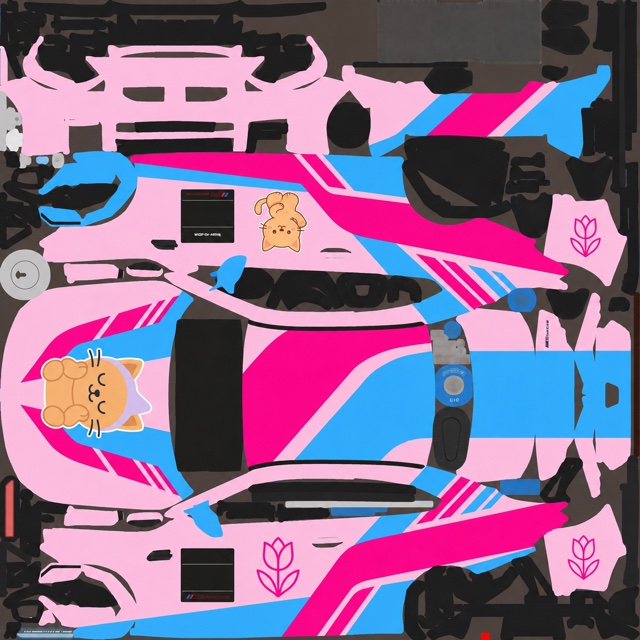
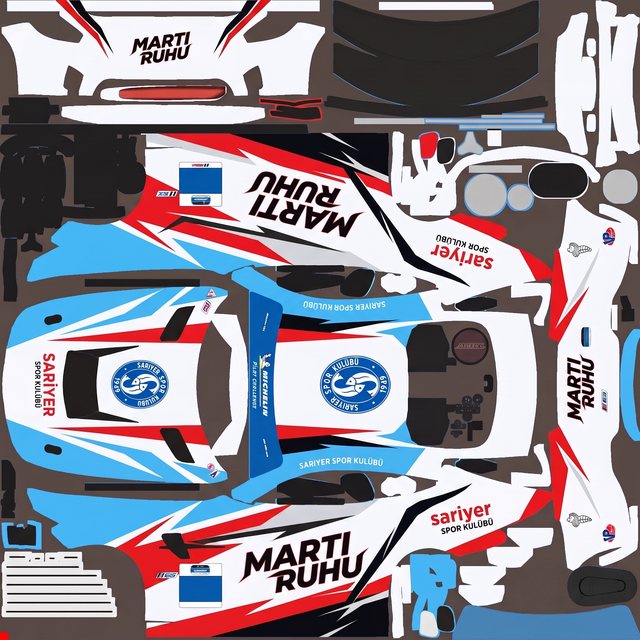
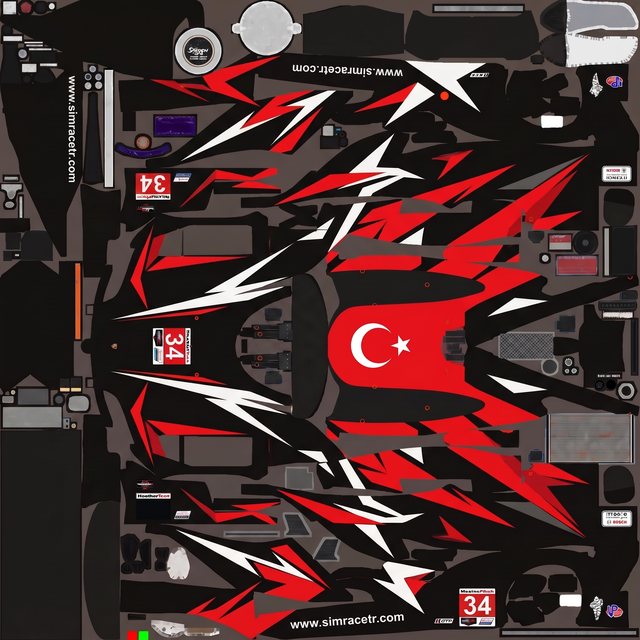
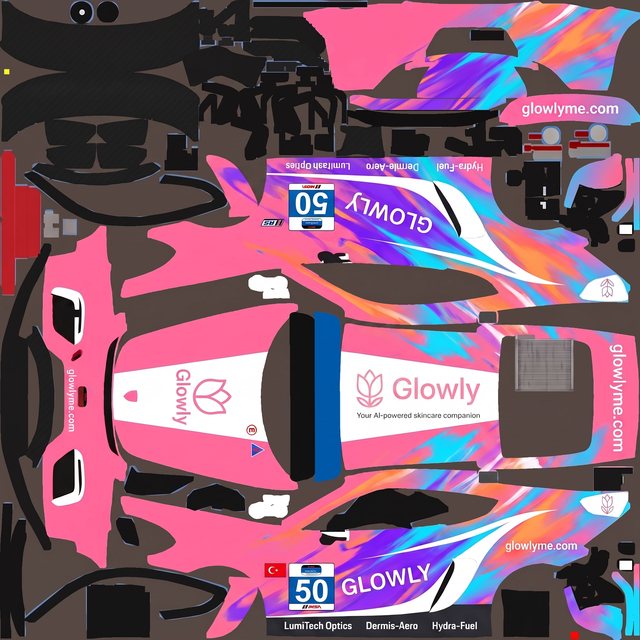
Real liveries, no Photoshop
Every one started as a plain-language brief on a blank paint template — described, generated, refined, exported. No layers, no channels.
Make your iRacing livery
Describe it, generate it, refine it, and export the TGA — all in one place.